
Creating your own invoice software in Excel might sound complicated, but it doesn’t have to be. Imagine having a simple, customized tool that saves you time, keeps your billing organized, and looks professional—all without spending money on expensive programs.
If you’ve ever felt overwhelmed by managing invoices or wished for an easier way to track your payments, this guide is for you. By the end of this article, you’ll know exactly how to build a powerful, easy-to-use invoice system in Excel that fits your unique needs.
Ready to take control of your invoicing? Let’s dive in!
Setup Your Workbook
Setting up your workbook is the first step in making invoice software in Excel. This step builds the base for your entire invoice system. A well-organized workbook saves time and avoids errors. Start with a clean and simple structure. Keep the layout clear and easy to follow.
Each part of your invoice needs its own place. This helps you find and change details quickly. Follow these steps to set up your workbook correctly.
Create A New Spreadsheet
Open Excel and start a new blank spreadsheet. Name the file something clear, like “Invoice Software”. Save it in a folder you can find easily. This keeps your work safe and organized. Use a simple file name to avoid confusion later.
Design The Invoice Layout
Plan how your invoice will look on the page. Use clear headings for each part like “Date”, “Items”, and “Total”. Leave space for your company name and logo at the top. Choose easy-to-read fonts and sizes. Keep the colors minimal to stay professional. A neat layout makes your invoice easy to read.
Set Up Invoice Sections
Divide your spreadsheet into sections for different information. Start with customer details: name, address, and contact. Next, add a section for the invoice number and date. Include a table for listing products or services. Add columns for quantity, price, and total. Finish with a summary section for the subtotal, taxes, and final amount. Organizing these parts clearly helps avoid mistakes.
Input Basic Information
Inputting basic information is the first step in creating your invoice software in Excel. This section sets the foundation for clear and professional invoices. It helps keep your records organized and easy to understand.
Start by entering essential details about your business, your client, and the invoice itself. These details ensure your invoice looks official and contains all necessary information.
Add Company Details
Begin with your company name and logo at the top. Include your address, phone number, and email. This information shows who is sending the invoice.
Make sure the details are correct and easy to read. Use bold text for the company name to make it stand out.
Include Client Information
Next, add the client’s name and contact information. Include their address, phone number, and email address. This identifies who will receive the invoice.
Clear client details help avoid confusion and speed up payment processing.
Insert Invoice Number And Date
Assign a unique invoice number for tracking purposes. Use a simple number or a combination of letters and numbers.
Include the invoice date to show when the invoice was created. This date helps with payment deadlines and record keeping.
Create Itemized List
Creating an itemized list is a key step in making invoice software in Excel. It helps keep track of products or services clearly. The list shows what you sell and makes the invoice easy to read. This section guides you on how to build a neat and useful itemized list.
List Products Or Services
Start by listing all products or services you offer. Each item gets its own row in Excel. Use simple names that your customers will understand. Keep the list clear and avoid long descriptions. This helps your invoice look clean and professional.
Add Quantity And Price Columns
Create two columns next to your product list. One for quantity and one for price per item. Quantity shows how many units the customer buys. Price is the cost of one unit. Use numbers only. This makes calculations easier and faster.
Calculate Line Totals
Multiply quantity by price to get the line total. Use Excel formulas to do this automatically. This shows the total cost for each item. It saves time and reduces mistakes. Place the totals in a new column next to price. This gives a clear view of costs at a glance.
Add Formulas For Totals
Adding formulas for totals in your Excel invoice makes the process fast and error-free. It helps you calculate amounts automatically. This reduces mistakes and saves time. You will learn how to sum item totals, apply tax, and find the final amount due.
Sum Up Item Totals
First, add a formula to sum each item’s total cost. Use the SUM function to add values in the item total column. For example, enter =SUM(D2:D10) if your item totals are in cells D2 to D10. This formula gives the total cost of all items listed.
Include Tax Calculations
Calculate tax by multiplying the total amount by the tax rate. If your tax rate is 10%, use =TotalCell0.10. Replace TotalCell with the cell holding the sum of item totals. This formula adds the correct tax to your invoice automatically.
Calculate Final Amount Due
To get the final amount due, add the tax to the total item cost. Use a formula like =TotalCell+TaxCell. Replace TotalCell and TaxCell with the correct cell references. This gives the full amount your client needs to pay.
Format For Professional Look
Formatting is key to making your invoice look professional in Excel. A clean, well-organized layout helps your clients understand the details quickly. It also reflects your business’s attention to detail and care.
Small changes in design can improve the overall appearance. Use borders, shading, fonts, and alignment wisely. These steps make your invoice clear and easy to read.
Use Borders And Shading
Borders separate sections and keep information tidy. Apply thin lines around cells to create clear boxes for each item.
Shading highlights important areas like headers or totals. Use light colors that do not distract from the text. This helps guide the reader’s eye through the document.
Apply Consistent Fonts And Colors
Choose simple fonts like Arial or Calibri for readability. Use one or two font styles only. Avoid fancy or script fonts that are hard to read.
Stick to a few colors to keep a neat look. Use dark text on a light background for clarity. Match colors with your brand but keep them subtle.
Align Text And Numbers
Align text to the left for easy reading. Numbers should be right-aligned for neat columns. This makes it easier to compare amounts at a glance.
Center titles and headers to give balance. Proper alignment creates a clean, organized feel. It helps users find information faster.

Credit: www.spreadsheet123.com
Automate With Drop-downs
Automating your invoice software in Excel can save time and reduce errors. Drop-down lists help you select items quickly without typing. This makes invoicing faster and more accurate. Using drop-downs also keeps your data clean and consistent.
Create Product Lists
Start by making a list of all products or services. Place this list in a separate sheet or a clear area. Keep product names short and clear. This list will be the source for your drop-down menu. Update it anytime you add new products.
Add Data Validation
Select the cells where you want drop-downs to appear. Go to the Data tab and click Data Validation. Choose “List” from the options. Then, select the product list range as the source. This will create a drop-down menu in those cells.
Simplify Item Selection
Drop-downs make choosing items easy and fast. Users just click and pick from the list. This avoids spelling mistakes or wrong entries. It also speeds up the invoice creation process. Your invoices will look professional and consistent.
Add Payment Terms And Notes
Adding payment terms and notes to your invoice in Excel helps clear communication. It sets expectations for when and how payments should be made. This step reduces confusion and speeds up the payment process. Let’s explore how to include these important details effectively.
Specify Due Dates
Clearly state the invoice due date. Use a date format that is easy to read, such as MM/DD/YYYY. This tells the client exactly when payment is expected. You can use Excel’s date functions to automate this. For example, add a formula to set the due date 30 days after the invoice date. Highlight the due date for better visibility.
Include Payment Methods
List all accepted payment methods on your invoice. Common options include bank transfer, credit card, or PayPal. This lets customers know how they can pay. Use simple wording, like “Payment by bank transfer accepted.” You can add a small table or bullet points to show these methods clearly. This section makes it easy for clients to choose their preferred payment option.
Add Custom Messages
Write a short, polite message for your customer. You might thank them for their business or remind them of late fees. Keep it friendly and clear. For example, “Thank you for your prompt payment.” Custom messages create a personal touch. Use Excel’s text boxes or cells at the bottom of your invoice for this. This space can also include special notes or instructions.

Credit: www.youtube.com
Save And Reuse Templates
Saving and reusing invoice templates in Excel saves time and effort. It helps keep your invoices consistent and professional. You do not need to create a new invoice from scratch every time. With a reusable template, you can quickly make new invoices by changing only the details. This section explains how to save your template, make copies, and keep your work safe.
Save As Template File
After designing your invoice in Excel, save it as a template file. Click “File” and then “Save As.” Choose the location on your computer. From the file type dropdown, select “Excel Template (.xltx).” Give your file a clear name, like “Invoice Template.” Saving as a template keeps your original file safe. You can open it anytime to create a new invoice without changing the original design.
Create Multiple Invoice Copies
Open your saved template to make new invoices. Use “Save As” to save each invoice under a new name. This keeps each invoice separate and organized. For example, name files by invoice number or date. This method avoids overwriting your template. It also makes tracking your invoices easier. You can quickly fill in new customer and payment details while keeping the layout fixed.
Backup Your Work
Backing up your invoice templates is very important. Save a copy on an external drive or cloud storage. This prevents loss from computer crashes or accidental deletion. Regular backups keep your work safe and accessible. Set a schedule to back up your files weekly or monthly. It protects your data and saves you stress later on.
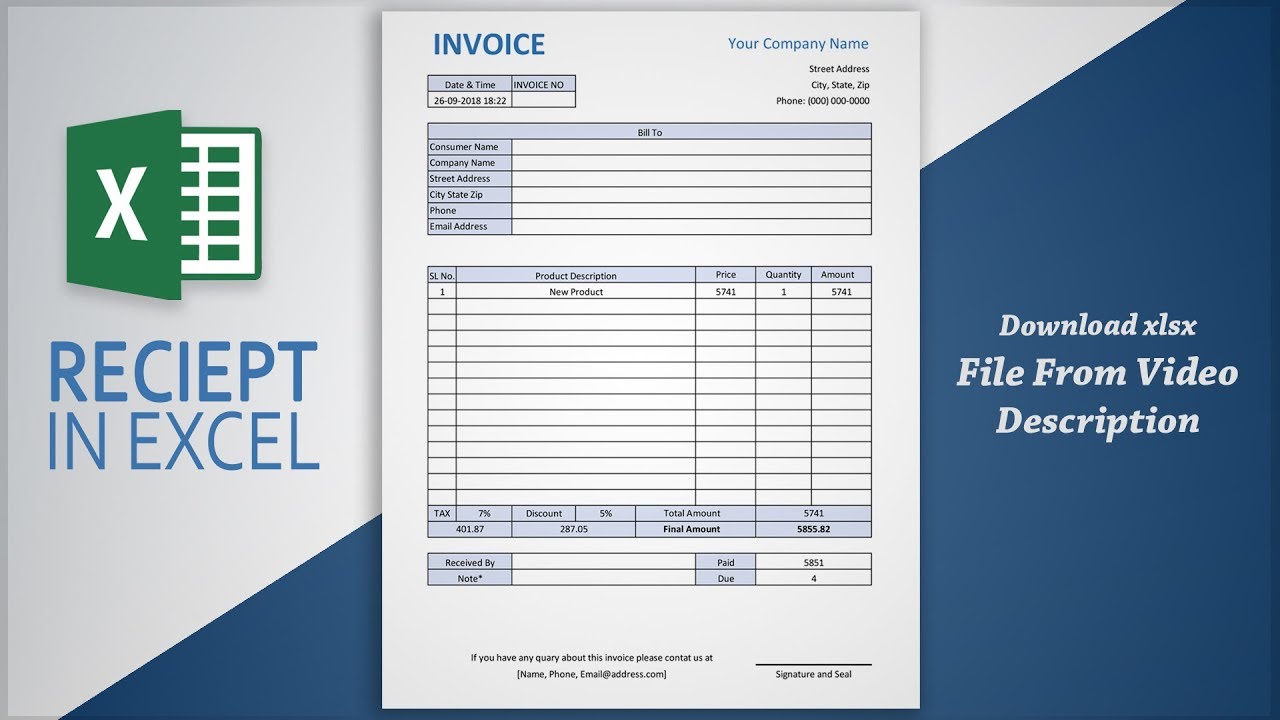
Credit: www.youtube.com
Frequently Asked Questions
How Can I Create An Invoice Template In Excel?
To create an invoice template in Excel, start by setting up headers like company info, client details, and invoice number. Use tables for item descriptions, quantities, and prices. Apply formulas for automatic calculations of totals and taxes. Finally, format it for clarity and save as a reusable template.
What Excel Features Help Automate Invoice Calculations?
Excel features like formulas, functions, and tables automate invoice calculations. Use SUM for totals, IF for conditional logic, and VLOOKUP for fetching data. Tables help organize line items efficiently. These tools reduce errors and speed up invoice creation, making your workflow smoother and more accurate.
Can I Customize Invoice Software In Excel?
Yes, Excel allows full customization of your invoice software. You can modify layouts, add logos, change colors, and include additional fields. This flexibility helps tailor invoices to your business needs, enhancing professionalism and brand consistency. Customization also supports unique billing requirements and client preferences.
Is Excel Suitable For Small Business Invoice Software?
Excel is ideal for small business invoice software due to its accessibility and ease of use. It requires no special software investment and offers flexibility. You can create, edit, and track invoices efficiently. However, it’s best for businesses with simple invoicing needs and limited transaction volume.
Conclusion
Creating invoice software in Excel is simple and useful. You can track payments and manage bills easily. This method saves time and money. Just follow the steps carefully and customize the sheet to fit your needs. Practice a little, and you will get better.
Excel offers many tools to help with calculations and formatting. Keep your invoices clear and organized for quick understanding. Try this approach to handle invoices without extra software. It works well for small businesses and freelancers. Give it a try today and see the difference.
